DMG Auto Eject Tool (AutoEject)
On macOS, many software applications are distributed using DMG disk images. While convenient, mounted DMG volumes do not unmount automatically, which blocks directory operations (such as deleting or moving the source DMG file) and raises system resource warnings. To solve this problem, I developed this menu-bar-based automatic unmounting tool supporting silent background execution, idle resets, and volume locking.
Start Installing & Experiencing
Follows Apple's standard DMG drag-and-drop installation. Completely free and without ads.
Installation & Interface
Installation is simple. Double-click to open the DMG, drag the application into your Applications folder, and execute the command in the Readme document to clear the security warning.
Upon launching, the app runs without opening a main window. Instead, it places a lightweight icon directly in the macOS status menu bar. Click the icon to expand the control panel:

The expanded control panel is styled below:
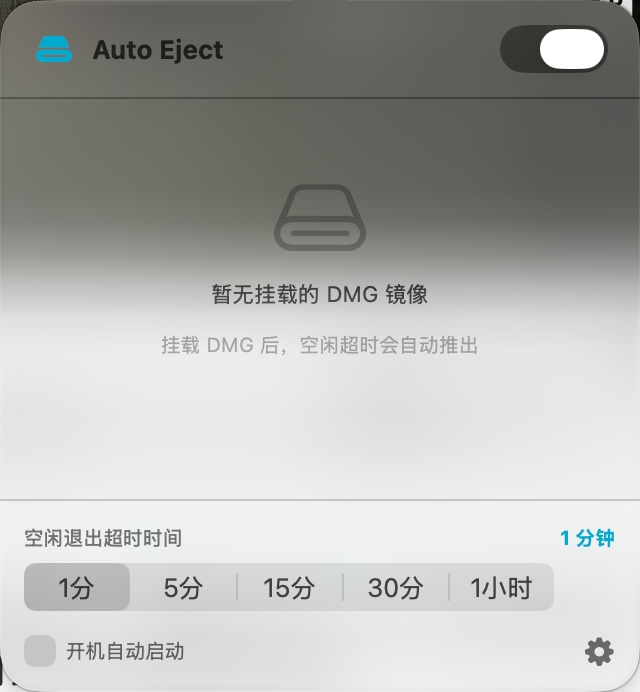
The layout is highly intuitive: the toggle switch at the top-right enables or disables the automatic DMG ejecting mechanism; the bottom slider customizes the idle timeout duration; the bottom-left checkbox configures launch-at-login settings; and the bottom-right cog button opens program settings.
Automated Detection & Smart Timer Rules
When a new DMG volume is mounted on the system, the app automatically detects it and initiates a countdown timer:
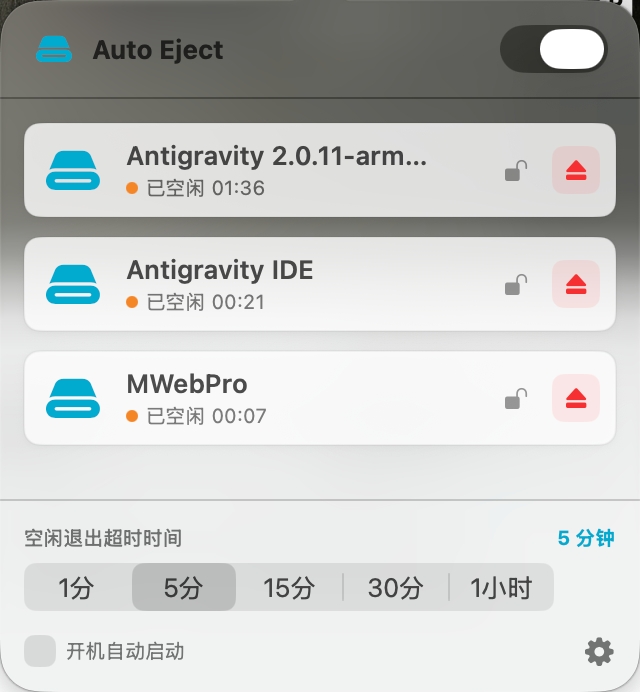
The smart logic for triggering and resetting the timer consists of:
- Eject Timer on Mount: The countdown begins immediately after any new disk image is mounted.
- Auto Reset on Activity: If you access or read files inside the DMG, or if terminal/Finder paths remain open inside the volume, the timer pauses. It will reset and start over only when the volume is completely idle again.
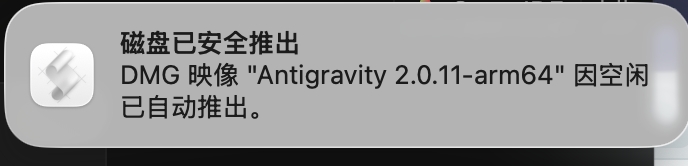
Once the countdown reaches your configured limit (e.g. 5 minutes shown above), the app safely unmounts the DMG and displays a notification banner in the top-right corner of your macOS screen:
Fine-grained Device Control
For each separate DMG entry in the mounted list, you can perform independent actions:
- Eject Directly: Instantly unmount the selected DMG volume without waiting for the countdown timer to finish.
- Lock: Check this box to prevent the DMG from being automatically ejected even when the countdown runs out. This is useful for compilation, resource indexing, or reading tasks where you need the DMG to stay mounted indefinitely. (Locking does not affect the countdown; if unlocked after timing out, it will be unmounted immediately).
Advanced Settings & Clean Uninstall
Clicking the settings button in the bottom-right corner reveals options to quit or thoroughly uninstall the app:
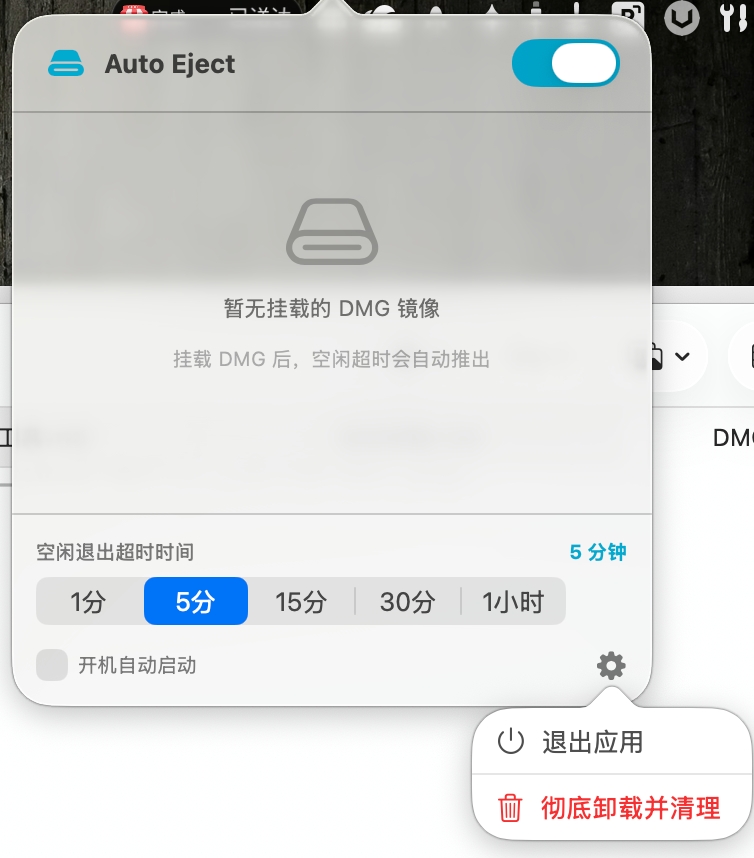
If auto-eject is enabled, quitting the status menu application or restarting your Mac will not affect the background daemon processes. Timers will still run and unmount idle volumes. Choosing "Clean Uninstall & Clean Up" deletes all background daemons, cleans up plist schedules, and deletes the startup configurations cleanly.
Free software, welcome to download and try! If you have any feedback or ideas, please let me know.
留言交流 / Comments