Old File Shredder
When a computer is used for a long time, the biggest issue is a huge amount of old files scattered everywhere. Even with good habits of storing files in designated folders, temporary downloads or assets can be hard to clean up in time. To solve this pain point once and for all, I developed this visual folder automatic cleanup and old file shredder tool designed exclusively for macOS.
Start Installing & Experiencing
Follows Apple's standard DMG drag-and-drop installation. Completely free and without ads.
Installation & Interface
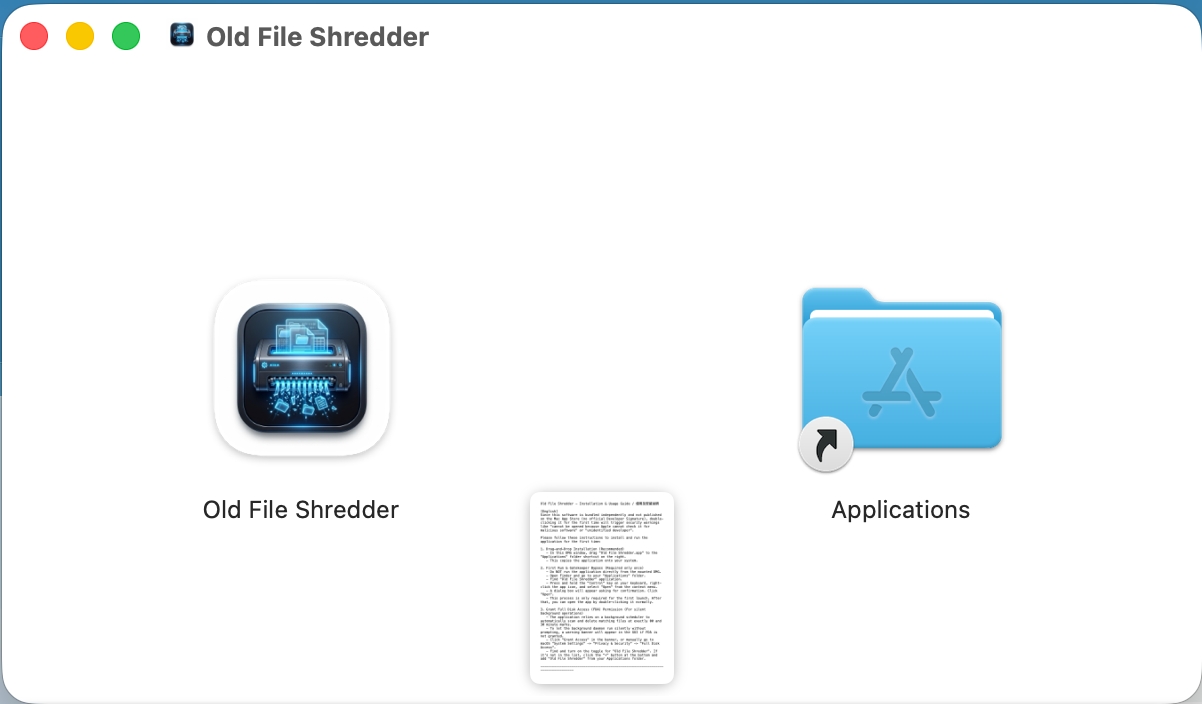
Installation is simple. Double-click the DMG image, and drag the application into your Applications folder:
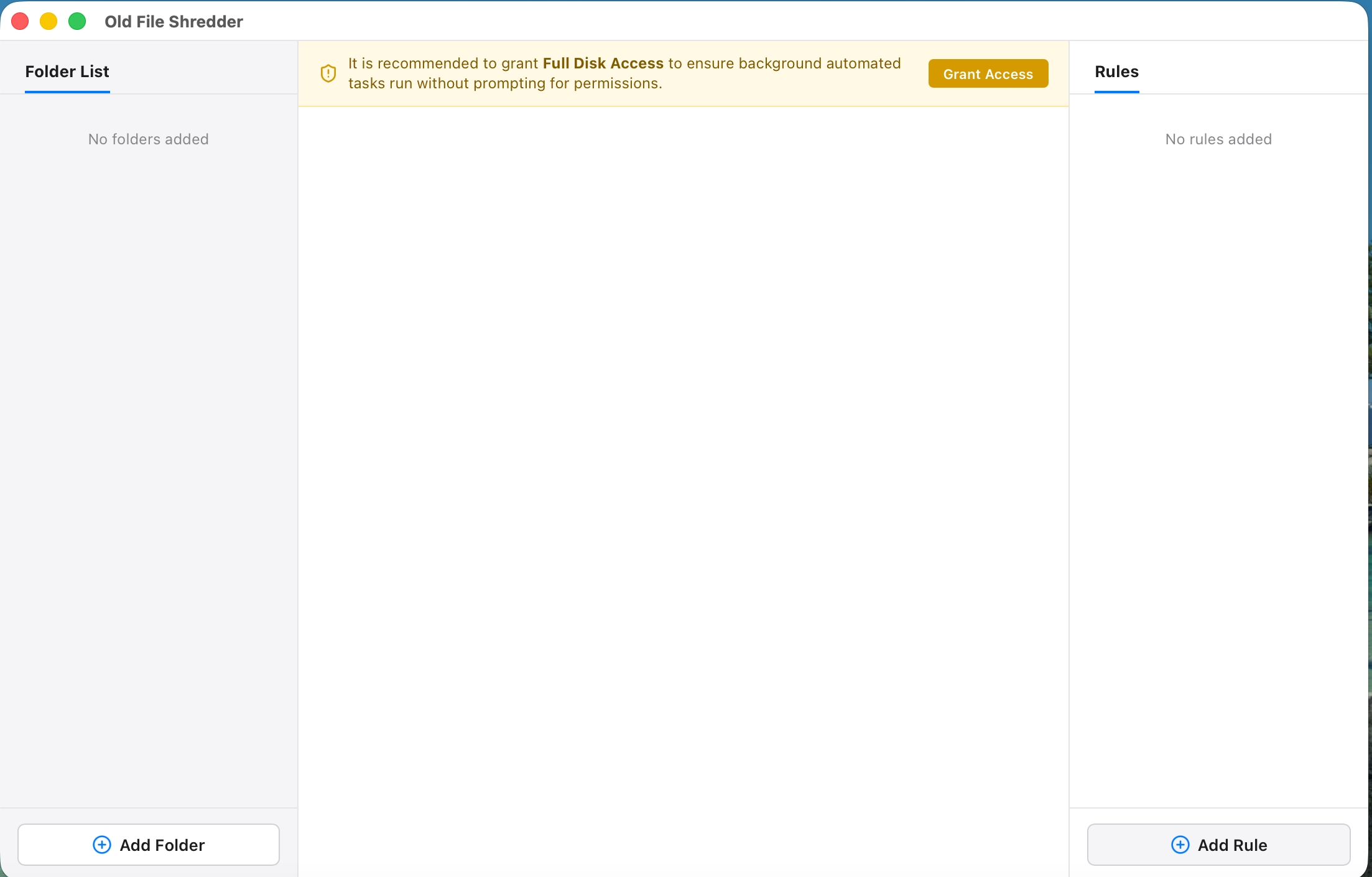
The main interface of the software is clean and intuitive, containing a folder list on the left, matching rules in the middle, and a rule definition panel on the right:
Full Disk Access
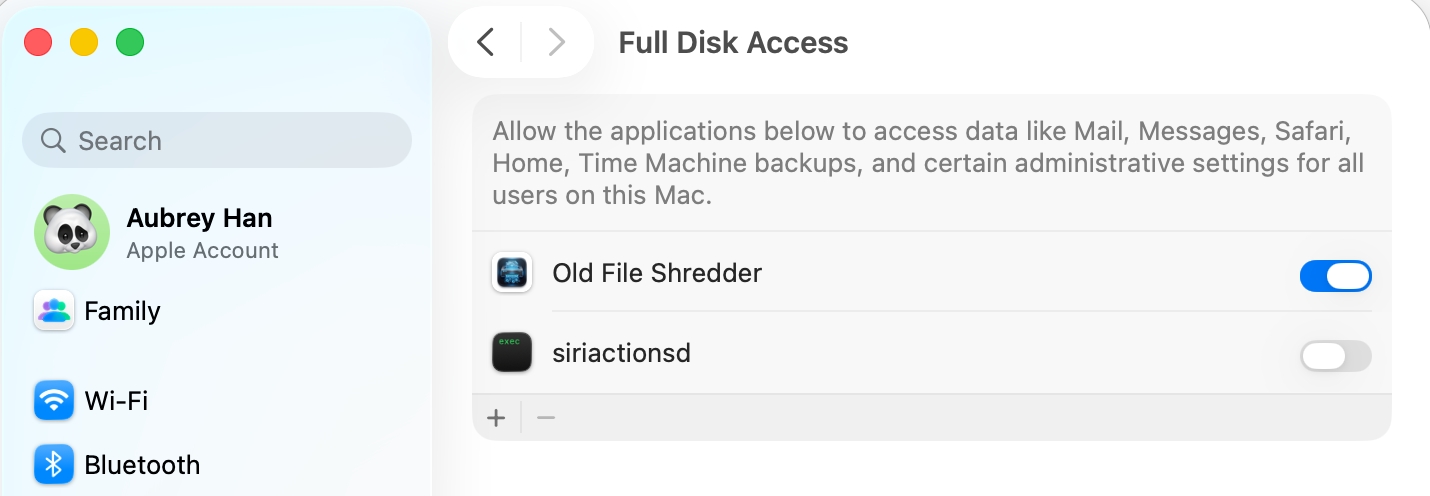
Because it needs to scan and delete files in specified folders, the app displays a prompt at the top to grant Full Disk Access. Click Grant Access to open the system preference panel directly. If you don't grant permission, the application will still work, but the system will display a prompt asking for permission every time the application performs operations on protected folders, which is quite tedious:
Adding & Managing Folders
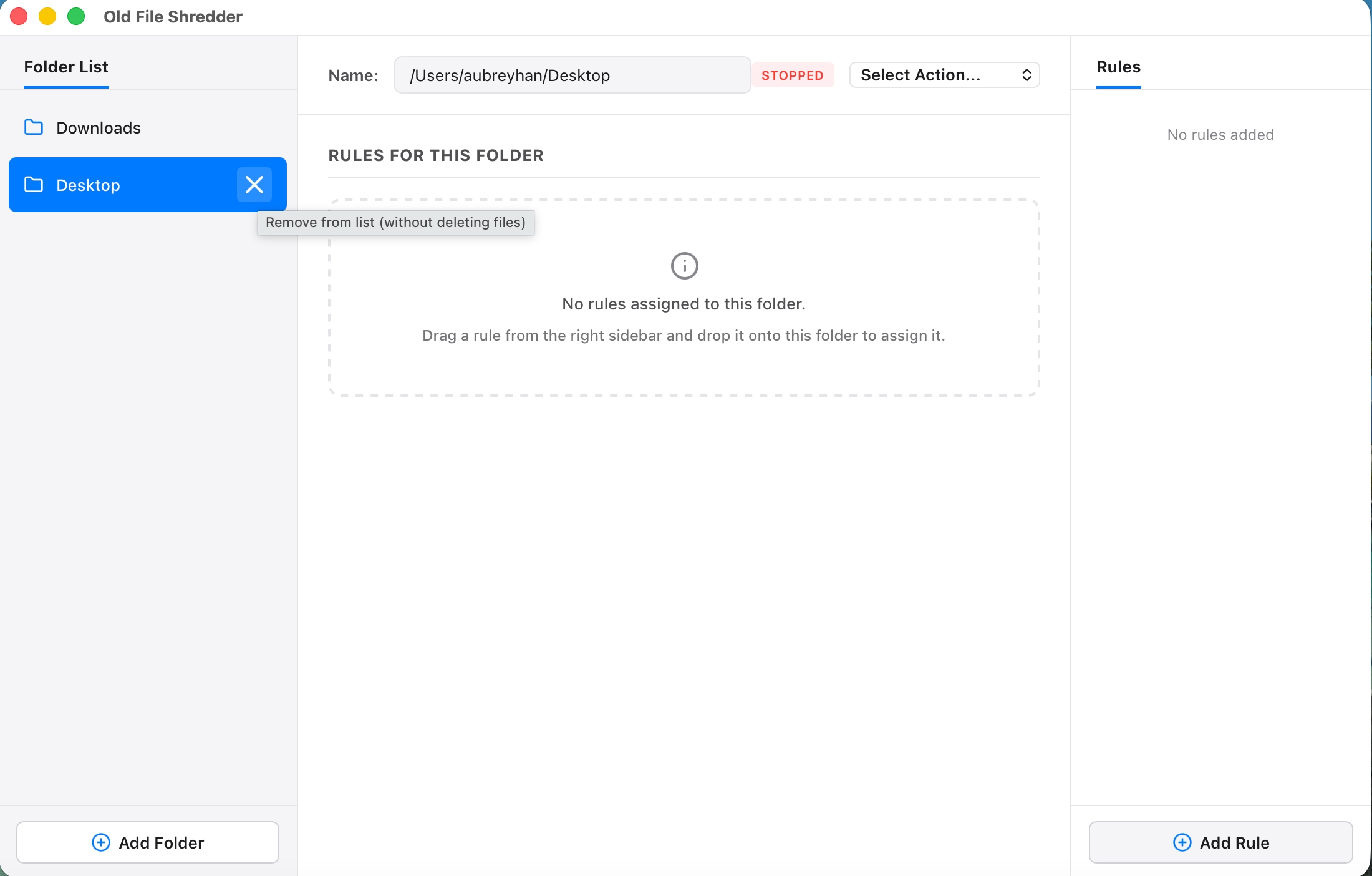
The left sidebar is for folder management, where you can add folders that need automatic cleanup (such as downloads or cluttered desktops) one by one. Click the X icon on the right side of any folder to remove it. When you select a folder, the middle section will display the specific cleanup rules matched to it:
Flexible Rule Definition & Filtering
The right column is used for adding and editing rules, which is the core part of the application. Click the "Add Rule" button to see the detail rule components:
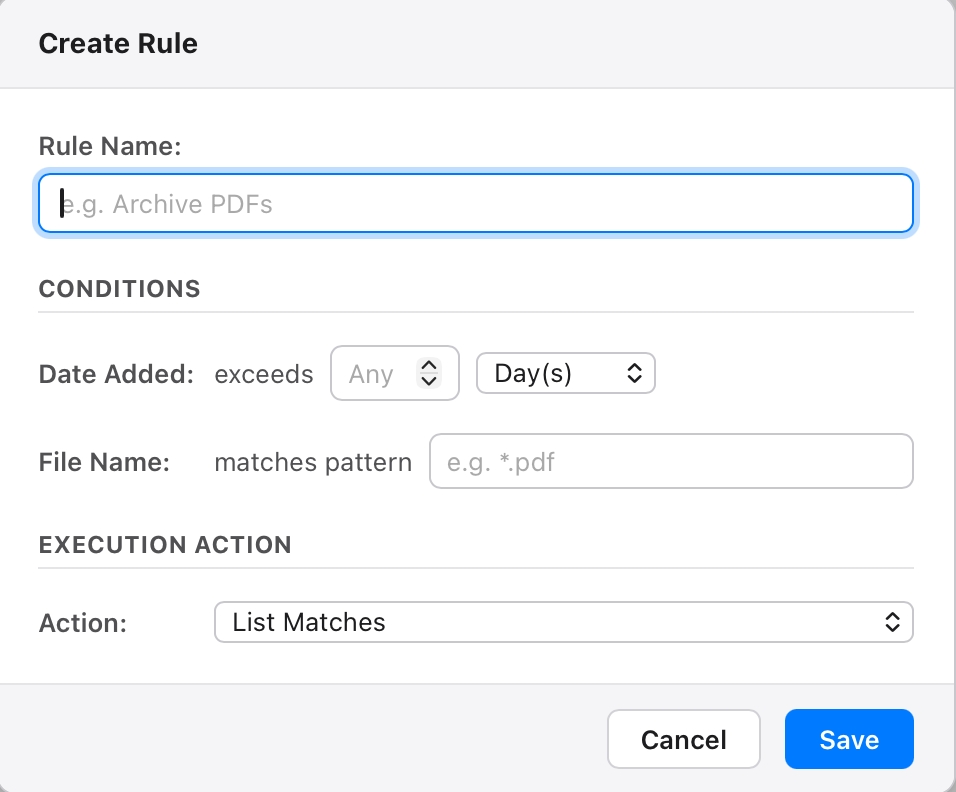
A rule consists of the following key components:
- Rule Name: A unique name to identify the rule. Duplicate names are not allowed.
- Matching Conditions:
- Storage Time: How long files have stayed in the folder (can be set by minutes, hours, days, weeks, months).
- Filename Match: Supports wildcard patterns for precise filename filtering.
- You can enable a single condition or combine both conditions (using logical AND).
- Actions: For files and folders that match the conditions, four actions can be configured:
- List Only: Only list matched files in the interface without performing any actual actions (for safely testing your rules).
- Confirm & Delete: Prompts a confirmation dialog before deleting files.
- Force Delete: Deletes matched files permanently and silently.
- Retain: Protects matched files from deletion (white list).
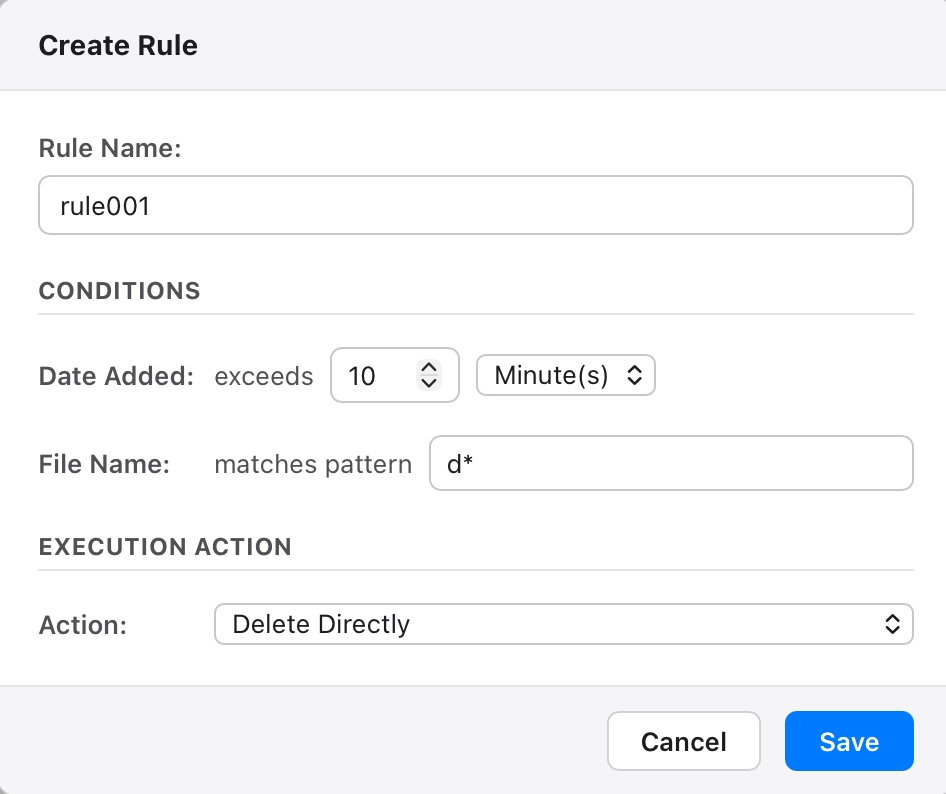
For example, the following sample rule states: if a file has been stored in the folder for more than 10 minutes and its name starts with "d", perform a silent delete action immediately:
Rule Assignment & Execution
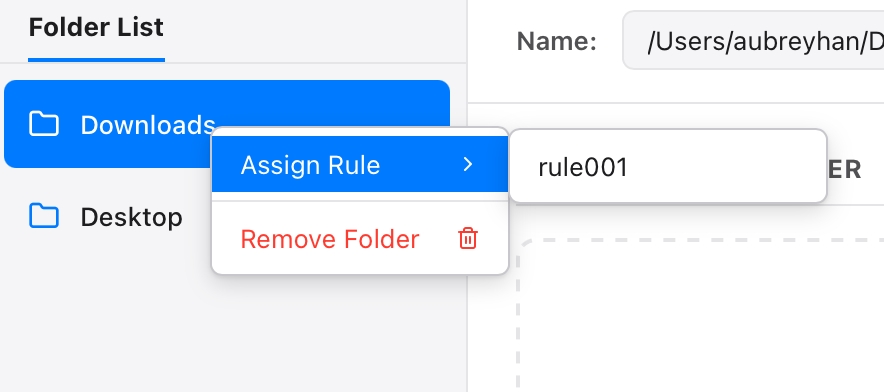
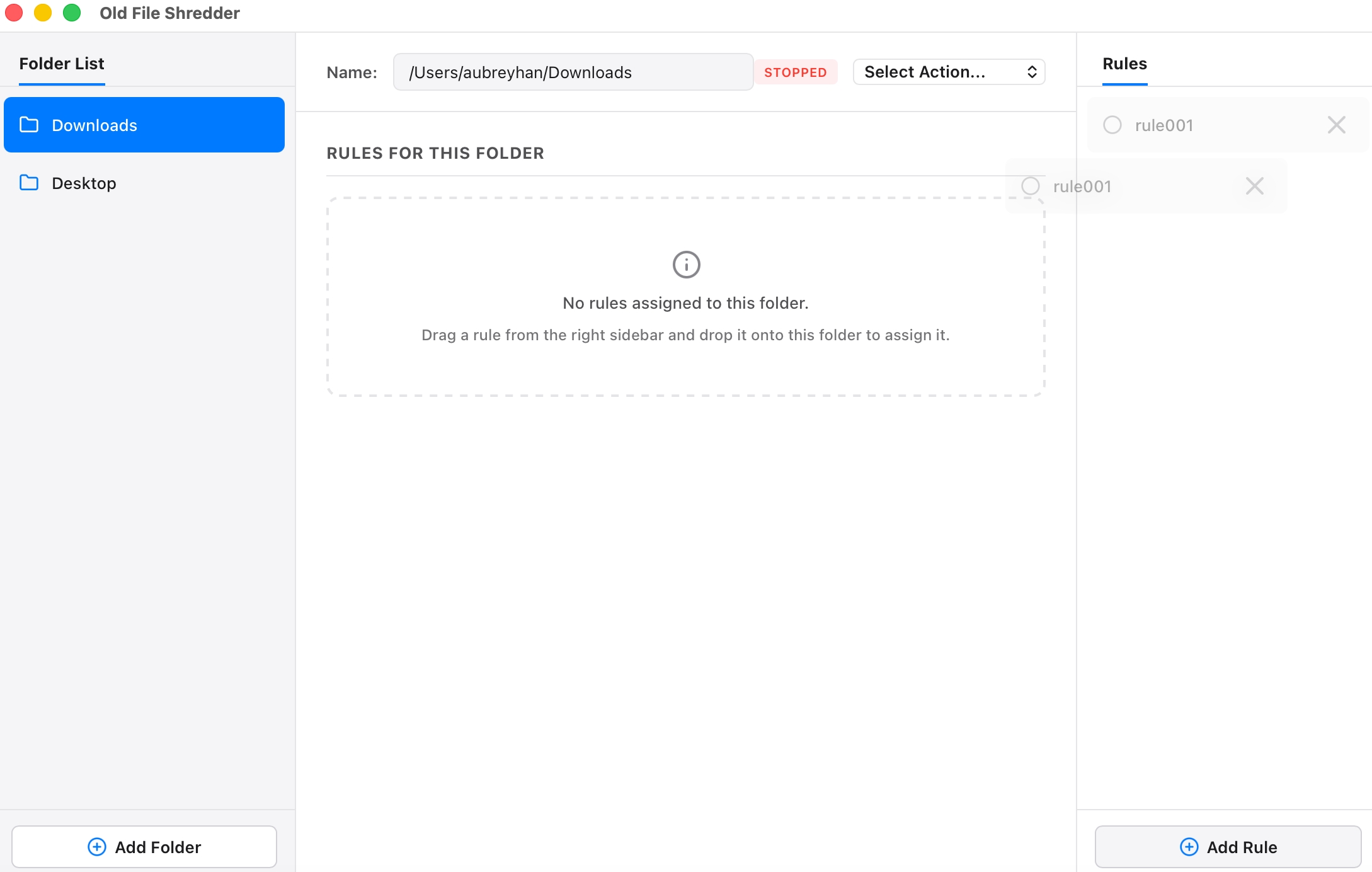
After creating a rule, you can assign it to a folder in two convenient ways:
- Right-Click Menu: Right-click on a folder and check the rule you want to apply in the context menu.
- Drag & Drop: Drag a rule card from the right column and drop it into the folder rule section on the left.
Scheduling & Background Execution
Rules can be executed in two different ways:
- Run Immediately: Clean up the selected folder right away with the assigned rules.
- Schedule Background Task: Hook the cleanup task into a background daemon to run silently on the hour or half-hour. Even if the main window is closed, background tasks will remain active. Background tasks will also start automatically on system reboot.

Advanced Features
- Automatic Cleanup of Background Tasks: When a folder is removed from the management list (which does not affect the physical folder), its associated background scheduling tasks are automatically unregistered.
- Rule Deletion Protection: Rules that are currently assigned to folders are protected and cannot be deleted. You must unbind them first.
- Auto Sync Updates: Editing an existing rule automatically syncs the changes to all background tasks that use it.
- Execution Priority & Order: A folder can have multiple rules. You can drag and drop them to adjust the priority. Files are matched from top to bottom; once they hit the first matching rule, they will execute the action and stop matching subsequent rules. This is extremely useful for whitelisting: e.g., you can put a "Retain" rule for important files at the top, protecting them from a "Delete" rule below.
- Clean Uninstall: Uninstalling the app automatically cleans up all registered autostart configs and background cleanup daemons, leaving no junk processes.
Free software, welcome to download and try! If you have any feedback or ideas, please let me know.
留言交流 / Comments